
Installing SIFT Forensics on Ubuntu 24.04.2 LTS: The Complete VirtualBox Guide
Transform Your System into a Professional Digital Forensics Workstation Using Cast and SaltStack

Digital forensics has never been more critical in today's cybersecurity landscape. Whether you're investigating incidents, analyzing malware, or conducting digital evidence recovery, having the right tools at your fingertips can make the difference between a successful investigation and a dead end. In this comprehensive guide, we'll walk through setting up the SANS Investigative Forensic Toolkit (SIFT) on Ubuntu 24.04.2 LTS using VirtualBox and the modern Cast deployment method.
Step 1: Installing VirtualBox on Windows
First, we'll set up VirtualBox on your Windows machine to create our forensics environment.
Download VirtualBox:
Navigate to the official VirtualBox website:
https://www.virtualbox.org/wiki/DownloadsClick "Windows hosts" to download the latest VirtualBox installer
Also download the "VirtualBox Extension Pack" for additional features
Install VirtualBox:
Run the installer (
VirtualBox-7.2.x-Win.exe) as AdministratorAccept the license agreement and choose installation directory
Select components to install:
VirtualBox Application (required)
VirtualBox USB support (recommended)
VirtualBox Networking (required)
VirtualBox Python 2.x support (optional)
Install the Extension Pack:
Double-click the downloaded
.vbox-extpackfileFollow prompts to install additional features
Verify Installation:
Launch VirtualBox from Start Menu
Check version:
Help → About VirtualBox
Step 2: Downloading Ubuntu 24.04.2 LTS ISO
Next, we need to obtain the Ubuntu 24.02 LTS installation image for our virtual machine.
Download the ISO:
Navigate to the official Ubuntu releases page:
https://old-releases.ubuntu.com/releases/24.04.2/Download
ubuntu-24.04-desktop-amd64.iso(approximately 4.5GB)Verify download integrity (optional but recommended):
Download the SHA256SUMS file
(optional) Use PowerShell to verify:
# In PowerShell, navigate to Downloads folder
cd $env:USERPROFILE\Downloads

# Check file hash
Get-FileHash ubuntu-24.04-desktop-amd64.iso -Algorithm SHA256
Tip: Create a dedicated folder like C:\ISOs\ to organize your installation media.
Step 3: Creating Ubuntu VM in VirtualBox
Now we'll create a robust virtual machine environment optimized for forensics work on Windows.
Create the Virtual Machine:
Launch VirtualBox from Windows Start Menu
Create New VM:
Click "New" button
Name:
Sift-Ubuntu (can name whatever)Type: Linux
Version: Ubuntu (64-bit)
Click "Next"
Configure VM Resources :
Memory: 8192 MB (8GB minimum, 16GB recommended)
Hard Disk: Create virtual hard disk now
Hard disk file type: VDI (VirtualBox Disk Image)
Storage on physical hard disk: Dynamically allocated
File location and size: 100GB
**Note: These are recommendations and can be lowered
Start VM and Install Ubuntu:
Click "Start" to boot from the Ubuntu ISO
Follow Ubuntu installation process
Create user account:
forensics(or your preferred username)Enable automatic login for convenience
Choose "Minimal installation" to save space initially
Step 4: Insert VBox Tools for Installation
VirtualBox Guest Additions are crucial for optimal VM performance and seamless integration.
Install Guest Additions:
Prepare the system:
sudo apt update && sudo apt upgrade -y
sudo apt install build-essential dkms linux-headers-$(uname -r) -y
Insert Guest Additions CD:
In VirtualBox menu:
Devices → Insert Guest Additions CD Image
Install Guest Additions:
sudo /media/<username>/VBox_GAs_7.x.x/VBoxLinuxAdditions.runReboot and verify:
sudo reboot

# After reboot, verify installation
lsmod | grep vbox
Enable enhanced features:
Shared clipboard:
Devices → Shared Clipboard → BidirectionalDrag and drop:
Devices → Drag and Drop → Bidirectional
Step 5: Downloading Cast Debian Package from GitHub
Cast is the modern deployment tool for SIFT, replacing the legacy installation methods with a streamlined SaltStack approach. We'll download this on Windows and transfer it to our Ubuntu VM.
Download Cast on Windows:
Open web browser and navigate to:
https://github.com/ekristen/cast/releasesDownload the latest Debian package:
Look for the latest release (e.g., v0.16.25)
Download
cast-v0.16.25-linux-amd64.debSave to
C:\Downloads\or your preferred location
Alternative download using PowerShell:
# Open PowerShell as Administrator
cd $env:USERPROFILE\Downloads

# Download Cast package
Invoke-WebRequest -Uri "https://github.com/ekristen/cast/releases/download/v0.16.25/cast-v0.16.25-linux-amd64.deb" -OutFile "cast-v0.16.25-linux-amd64.deb"

# Verify download
ls cast_*.deb
Verify the download:
Check file size (should be around 15-20MB)
Ensure
.debextension is preserved
Step 6: Transfer Package to VM and Install with dpkg -i
Now we'll transfer and install the Cast package in our Ubuntu VM.
Transfer Methods:
Option A: Shared Folders (Recommended)
Setup shared folder:
VirtualBox menu:
Devices → Shared Folders → Shared Folders SettingsAdd folder containing the Cast package
Enable "Auto-mount" and "Read-only"
Access shared folder in VM:
cd ~
sudo -s
cp /media/sf_<shared_folder_name>/cast-v0.16.25-linux-amd64.deb .
Option B: Direct download in VM:
cd ~/Downloads
wget https://github.com/ekristen/cast/releases/download/v0.16.25/cast-v0.16.25-linux-amd64.deb
Install Cast:
#Already in sudo -s session

# Install the package
dpkg -i cast-v0.16.25-linux-amd64.deb

# Fix any dependency issues
apt-get install -f

# Verify installation
cast --version
which cast

#exit sudo session
exit
Step 7: Run Cast teamdfir/sift-saltstack
Time to deploy SIFT using the Cast tool and SaltStack configuration.
Deploy SIFT:
# Run Cast with SIFT SaltStack configuration
sudo cast teamdfir/sift-saltstack

# The installation will take 15-30 minutes
# You'll see extensive output showing progress
Monitor Installation Progress:
The Cast deployment will:
Download SaltStack states from the teamdfir/sift-saltstack repository
Install Salt minion if not present
Apply all SIFT configurations and packages
Configure desktop environment and user settings
Install forensics tools and dependencies
Common Installation Output:
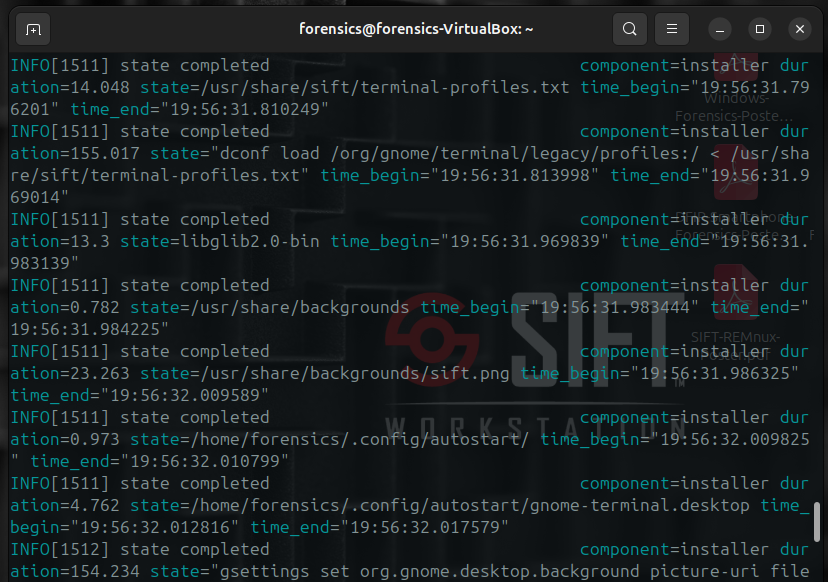
Post-Installation:
# Reboot to ensure all configurations are applied
sudo reboot
**Note: Some tools may not have been installed due to stagnant locations or tool movement by original developers.
If the instalation was successful the background will switch to SIFT Workstation and desktop will have SANS brochures for forensic artifacts.
Digital Forensics Arsenal: 10+ Essential Tools Now at Your Fingertips
Your SIFT installation includes a comprehensive suite of forensics tools:
Memory Analysis:
Volatility Framework - Advanced memory dump analysis and malware detection
Rekall - Cutting-edge memory forensics with live analysis capabilities
Disk & File System Analysis:
The Sleuth Kit (TSK) - Complete disk image analysis toolkit
Autopsy - Intuitive graphical interface for disk analysis
Guymager - Forensic imaging tool with verification capabilities
Network Forensics:
Wireshark - Premier network protocol analyzer
NetworkMiner - Network forensics analysis tool
tcpdump - Command-line packet analyzer
Timeline & Log Analysis:
Plaso (log2timeline) - Super timeline creation and analysis
Timeline Explorer - Advanced timeline visualization
Additional Specialized Tools:
YARA - Pattern matching engine for malware research
ClamAV - Antivirus engine for malware detection
Binwalk - Firmware analysis and reverse engineering
Foremost - File carving and recovery tool
Hashdeep - File integrity verification and comparison
Python Forensics Libraries:
pytsk3 - Python bindings for The Sleuth Kit
pefile - PE file analysis library
python-registry - Windows Registry analysis
dfvfs - Digital Forensics Virtual File System
Outro: Your Forensics Journey Begins Here
Congratulations! You've successfully transformed a standard Ubuntu system into a professional-grade digital forensics workstation. The SIFT toolkit you've installed represents years of development by the digital forensics community and provides the same tools used by professionals worldwide.
Next Steps:
Practice with sample data before working on real cases
Create VM snapshots before each investigation
Keep detailed case notes and maintain chain of custody
Stay updated by regularly running Cast updates
Join the community and contribute to the SIFT project
Tips for Forensics Success:
Always work on copies, never original evidence
Document every step of your investigation
Verify tool integrity before each case
Follow legal and organizational procedures
Consider pursuing formal forensics training and certifications
Whether you're investigating cybersecurity incidents, conducting malware analysis, or diving into digital evidence recovery, your SIFT workstation is now ready to tackle the challenges ahead. The tools are powerful, but remember - the most important forensics tool is between your ears.
Happy investigating! 🔍
Sources and References
Official Documentation:
SANS Institute Resources:
VirtualBox Documentation:
Additional Learning Resources:
Last updated: August 2025 | Author: Ray Mon | Follow for more cybersecurity content