
Deploying Your Static Site to Azure: Static Web Apps vs Storage Blobs (And Why I Left Azure Front Door Behind)
Hidden costs and infrastructure issues with Azure AFD for Static Sites

I recently went through the process of deploying a static site to Azure, and honestly, the experience for a straight vanilla deployment was smooth. To get there was the challenge. Since I began with the Blob storage method, there were some things to understand.
You need a Subscription
Then need create resource group under the subscription
Create a storage account
Don’t forget to register to a registrar group
Download a tool so you can upload you entire of SSG to the storage
It did not stop there once that was established, in order to use a custom domain the best option was to use a CDN. As I learned all this, Azure’s CDN was deprecated and you need to use their new fancy Azure Front Door Profile.
All in all you ended up with about 6 new services all managed under the same subscription. Additionally, I had to create a DNS zone. Yea what a mistake.
Here’s the deal: Azure gives you a few options for hosting static sites. You can go with Azure Static Web Apps (the newer, shinier option), Azure Storage Blob (the OG method that’s been around forever), or Azure Front Door with Storage Blobs (which is what I was using until literally today). Spoiler alert: I just migrated away from Azure Front Door, and I’m going to tell you exactly why.
My Azure Front Door Reality Check
Let me start with what I was doing before. I had my static site in Azure Storage Blobs with Azure Front Door (AFD) sitting in front of it to handle SSL for my custom domain and provide CDN capabilities. In theory, this sounds great—global CDN, SSL termination, routing rules, the works.
In reality? It became a nightmare for a simple static site.
Azure deprecated the classic CDN options and pushed everyone toward Azure Front Door. The problem? The basic Azure Front Door tier costs $35/month. For a static blog. Let that sink in. I’m running a personal site here, not a Fortune 500 enterprise application.
But the cost wasn’t even the worst part. The headaches on how the Front Door works were:
Cache purging hell: Every time I updated my site content, I had to manually purge the AFD cache. Otherwise, my updates could take days to propagate across all the global cache nodes. Imagine fixing a typo and waiting 48 hours to see if it actually worked.
-Note*: Solution here was to implement Vite version caching for your website files to bypass the propagation problem.
No quick feedback loop: Push update → wait → purge cache → wait more → check if it worked → repeat. This killed my ability to iterate quickly.
That’s what finally pushed me to migrate to Azure Static Web Apps today. And honestly, I should’ve done it months ago.
Why I Chose Azure Static Web Apps
After dealing with the Azure Front Door complexity, Azure Static Web Apps feels like a breath of fresh air. But let me walk you through the whole journey from zero to deployed, so you understand all your options.
Step 1: Picking Your Static Site Generator (I Used Astro)
Before you even think about Azure, you need a static site to deploy. I went with Astro for mine, and it’s been fantastic. If you haven’t tried Astro yet, think of it as the modern static site generator that actually makes sense—blazing fast, minimal JavaScript by default, and you can bring your own framework (React, Vue, Svelte, whatever).
Why Astro worked for me:
Performance first: It ships zero JavaScript by default unless you explicitly need it
Content-focused: Perfect for blogs, documentation, portfolios—basically anything that doesn’t need to be a full SPA
Developer experience: The component syntax is clean, and hot reloading actually works
Flexibility: I can write in Markdown, MDX, or full components when I need interactivity
Setting up Astro is dead simple:
npm create astro@latest
Follow the prompts, pick a template (or start blank), and you’re off. The build output goes into a dist/ folder by default—remember that, because Azure will ask for it later.
Other solid options:
Hugo: If you want raw speed and don’t mind Go templates
Jekyll: The GitHub Pages classic, great if you’re already comfortable with Ruby
11ty: Minimal and flexible, uses JavaScript templating
Next.js (static export): Overkill for simple sites but powerful if you need it
The key is picking something that outputs pure HTML/CSS/JS files. That’s your ticket to any Azure deployment method.
Step 2: GitHub Repo Setup
This part’s straightforward, but it’s critical for the Azure Static Web Apps workflow. Create a GitHub repository for your site—doesn’t matter if it’s public or private.
git init
git add .
git commit -m “Initial commit”
git branch -M main
git remote add origin https://github.com/yourusername/your-site.git
git push -u origin main
Pro tip: Make sure your .gitignore includes your build output folder (dist/, build/, public/, whatever your SSG uses). You don’t want to commit built files—Azure will build them for you.
Here’s what mine looks like:
node_modules/
dist/
.env
.DS_Store
The GitHub connection is what makes Azure Static Web Apps special. When you connect your repo, Azure automatically sets up a GitHub Actions workflow that builds and deploys your site on every push. It’s honestly kind of magical compared to my old AFD setup.
Step 3: Azure Setup—Static Web Apps vs Storage Blobs vs Front Door
Alright, here’s where the paths diverge. Let me show you all three methods, then explain why I picked one over the others.
Method 1: Azure Static Web Apps (My Current Choice)
Creating the Resource:
Log into the Azure Portal
Click “Create a resource” → search for “Static Web App”
Fill in the basics:
Resource Group: Create new or use existing
Name: Your site name (this becomes part of your default URL)
Plan type: Free tier is generous—use it
Region: Pick one close to your users
GitHub Integration (this is the cool part):
Click “Sign in with GitHub”
Authorize Azure
Select your repository and branch (usually
main)Choose your build preset (Astro is in the dropdown now!)
Set your build paths:
App location:
/(root of your repo)API location: leave blank unless you have Azure Functions
Output location:
dist(or whatever your SSG outputs)
Note: Since I usually build my static site prior to pushing to github, I point the App Location to ‘/dist’ because some components like the RSS Feed from this substack cannot be fetched during the build process from their auto deployment.
Hit “Review + Create”
What happens next:
Azure immediately commits a workflow file to your repo at .github/workflows/azure-static-web-apps-xxx.yml. This workflow:
Triggers on push to main (and PRs)
Installs dependencies
Builds your site
Deploys to Azure
Creates preview environments for PRs (seriously cool)
Custom Domain:
Adding a custom domain is built right in:
Go to your Static Web App resource → “Custom domains”
Click “Add”
Choose “Custom domain on other DNS” (unless you’re using Azure DNS)
Enter your domain (like
blog.yourdomain.com)Azure gives you a CNAME or TXT record to add to your DNS provider
Verify, and Azure handles the SSL certificate automatically via Let’s Encrypt
Default URL: You get
https://your-app-name.azurestaticapps.net
immediately
Method 2: Azure Storage Blob (The Classic Way)
Creating the Resource:
Azure Portal → “Create a resource” → “Storage account”
Fill in:
Resource Group: Same as before
Storage account name: Must be globally unique, lowercase, no special chars
Region: Pick your region
Performance: Standard (cheap and fine for static sites)
Redundancy: LRS is fine unless you need geo-redundancy
Create the storage account
Once deployed, go to the resource → “Static website” (under Settings)
Enable static website hosting
Set index document (usually
index.html)Set error document (usually
404.html)Azure gives you a primary endpoint URL
Deployment:
Unlike Static Web Apps, there’s no automatic GitHub integration. You need to:
Manual upload: Use Azure Storage Explorer or Azure CLI
GitHub Actions (DIY): Write your own workflow to build and deploy
Azure DevOps: Set up a pipeline yourself
Example GitHub Action for blob storage:
name: Deploy to Azure Blob Storage

on:
  push:
    branches: [main]

jobs:
  deploy:
    runs-on: ubuntu-latest
    steps:
      - uses: actions/checkout@v2
      - name: Setup Node
        uses: actions/setup-node@v2
        with:
          node-version: ‘18’
      - run: npm install
      - run: npm run build
      - uses: azure/login@v1
        with:
          creds: ${{ secrets.AZURE_CREDENTIALS }}
      - name: Upload to blob storage
        uses: azure/CLI@v1
        with:
          inlineScript: |
            az storage blob upload-batch \
              --account-name yourstorageaccount \
              --destination ‘$web’ \
              --source ./dist
Custom Domain:
More manual:
Storage account → “Custom domain”
Add your domain
You need to create a CNAME pointing to your blob endpoint
SSL is tricky: Blob storage doesn’t provide SSL for custom domains natively—you need Azure CDN or Front Door in front
Method 3: Azure Front Door + Storage Blob (What I Moved Away From)
This was my old setup, and it worked—until it didn’t.
The setup:
Create Storage Blob static website (as above)
Create Azure Front Door resource
Configure AFD origin to point to your blob storage endpoint
Set up routing rules
Add custom domain to AFD
Configure SSL certificate (automatic with AFD)
Why it sounds good:
Global CDN with edge locations worldwide
Advanced routing and WAF capabilities
SSL termination
Custom domain support
Why I left:
Cost: Basic tier is $35/month minimum—overkill for a blog (Not clear, Cost Analysis kept showing increasing cost)
Cache management: Manual purge required after every content update
Propagation delays: Could take days for updates to reach all edge nodes
Complexity: Way more moving parts than needed for static content
CDN deprecation: Azure deprecated the cheaper CDN options, forcing expensive AFD
The Real Difference: Why I Chose Static Web Apps
Here’s my honest comparison after using all three:
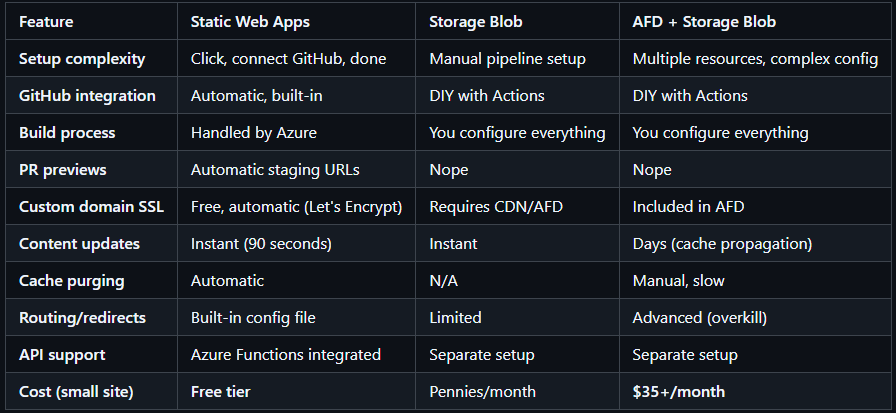
When to use Static Web Apps:
You want the easiest deployment experience
You’re already using GitHub
You need PR preview environments (huge for teams)
You want free SSL on custom domains
You need fast content updates without cache headaches
You might add serverless functions later
You don’t want to spend $35/month on a blog
When to use Storage Blob (alone):
You’re already deep in Azure Storage for other reasons
You want maximum control over the deployment process
You’re using Azure DevOps instead of GitHub
You’re deploying massive amounts of static content
You don’t need SSL on a custom domain (or you have CDN already)
When to use Azure Front Door:
You’re running an enterprise application with complex routing needs
You need WAF (Web Application Firewall) protection
You have budget for $35+/month
You need advanced traffic management
You can tolerate multi-day cache propagation delays
You’re NOT running a simple static site or blog
For me, the automatic GitHub integration, free SSL, instant updates, and zero monthly cost sealed the deal. I push to main, and 90 seconds later my site is live. No manual cache purging, no waiting days for CDN propagation, no $35/month bill. It just works. Seriously, the only things I have to manage is my Azure DNS and Static Web App services, which is way better than 6. I barely interact with Github (only to troubleshoot deployment if it fails) and I do pushes from the comfort of VScode or command line.
The Full Workflow in Action
Here’s what my day-to-day looks like now with Static Web Apps:
Write content in Markdown files
Run
npm run buildto built static assestsRun
npm run devto preview locallyGit add, commit and push to main
GitHub Actions kicks off automatically
Azure builds and deploys in ~90 seconds
Site is live at both my custom domain and the Azure default URL
No cache purging required—updates are instant
For PRs:
Create a feature branch
Make changes, push, open PR
Azure automatically creates a preview URL
Review the actual deployed site before merging
Merge PR → production deployment happens automatically
That preview environment feature alone has saved me from deploying broken CSS more times than I’d like to admit. But, even you did push broken css, it can be cleared up within seconds or minutes, depends on how fast you can fix your code and re-push
Compare this to my old AFD workflow:
Write content
Build locally and upload to blob storage (or use GitHub Actions)
Go to Azure Portal
Navigate to AFD
Purge the cache (hope you got all the right paths)
Wait hours or days
Check if the update actually propagated
Rinse and repeat if something’s still cached
Yeah, I don’t miss that.
Notes: Real Issues You’ll Actually Face
Let me save you some pain by walking through the actual problems I hit during my Azure journey. This is the stuff the documentation glosses over.
DNS Configuration Issues
The problem: Setting up custom domains in Azure sounds straightforward until it isn’t.
What tripped me up:
Validation delays: After adding the CNAME or TXT record to my DNS provider, Azure’s validation could take 10-15 minutes—or sometimes fail for no clear reason
Propagation confusion: DNS changes can take up to 48 hours to propagate globally, but Azure’s validation sometimes fails even after your DNS is configured correctly locally
CNAME flattening: Some DNS providers (looking at you, Cloudflare) do CNAME flattening which can cause validation issues. You might need to temporarily disable proxy mode during setup
The fix:
Use
nslookupordigto verify your DNS changes are live before troubleshooting AzureBe patient—sometimes you just have to wait
For Static Web Apps, TXT record validation is more reliable than CNAME in my experience
Don’t proxy through Cloudflare during initial setup; enable it after Azure validates
Shadow Resources and Zombie Resources
This one is biting me hard and could cost me money.
The problem: When you delete Azure resources through the portal, you’d think they’re gone. Nope. Azure loves to leave “shadow resources” or “zombie resources” hanging around, and they still incur costs.
What happened to me:
Deleted my Azure Front Door resource after migrating to Static Web Apps
I am currently still being charged
Investigated and found:
AFD was still incurring cost via Cost Analysis on Subscription
Once a resource is deleting, investigating it become impossible
The fix:
Always check the resource group after deleting resources—don’t just trust the portal
Look for resources with cryptic auto-generated names (like
afd-xxxxx-certorlaw-xxxxx)Check your billing details a few days after deletion to catch zombie charges early
Use Azure Resource Graph Explorer to find orphaned resources:
Resources
| where resourceGroup == “your-resource-group”
| where tags[’created-by’] contains “frontdoor” or name contains “afd”
Nuclear option: If you created a dedicated resource group for your site, delete the entire resource group to ensure everything dies
Forensics Scenario:
This is the same approach to how DFIR experts identify problems or potential incidents within someone cloud environments. Seeing random charges or services continuing to exist are sometimes good indicators of malicious activity especially if they persist for extended periods of time.
No Easy Way to Get Human Support
My experience:
Hit a critical issue with AFD cache not purging properly
Went to Azure support portal
Found out I needed a $29/month support plan minimum to talk to a human
Community forums were hit-or-miss—mostly “have you tried turning it off and on again?”
Documentation is comprehensive but often outdated or doesn’t cover edge cases
Documentation is not updated when massive changes are made
The reality:
Free tier = community support only (Stack Overflow, Reddit, Azure forums)
Developer support ($29/month) = business hours support, 8-hour response time
Standard support ($100/month) = 24/7, 1-hour response for critical issues
How I dealt with it:
The internet
Youtube
Gemini and Claude
This was the nightmare I was afraid of, I have heard of bad cases where people mucking around in azure end up getting billed thousands of dollars of usage for things they did not even know existed or were implemented in the background by azure without the user’s knowledge.
The AFD Cache Purge Nightmare
I mentioned this earlier, but it deserves its own section because it was the final straw.
The problem: Azure Front Door’s global CDN caches your content aggressively. That’s great for performance, terrible for iterating on a site.
My typical AFD update cycle:
Make content change (fix typo, update post)
Deploy to blob storage
Go to Azure Portal → Front Door → Endpoints → Purge
Choose purge type:
Single path: Purge just the changed file (but you need to know the exact path)
Wildcard: Purge everything (nuclear option)
Wait 10-30 minutes for purge to initiate
Wait hours or days for propagation across all edge nodes
Check the site from different regions (US, Europe, Asia) to verify
Find out it’s still serving cached content in some regions
Purge again
Contemplate life choices
Why it’s so slow:
AFD has dozens of edge locations worldwide
Each needs to receive and process the purge command
There’s no guaranteed propagation time
Different regions can be out of sync for extended periods
The contrast with Static Web Apps:
Push to GitHub
90 seconds later, new content is live globally
No cache management needed
No purging
No waiting
No regional inconsistencies
This alone justified the migration for me. I’m writing content and fixing bugs, not managing distributed cache infrastructure.
Resource Creation Failures with Cryptic Errors
Sometimes Azure just... fails to create resources. And the error messages are hilariously unhelpful.
Examples I hit:
“Deployment failed due to policy violation” (what policy?)
“Resource name unavailable” (for a globally unique name that definitely wasn’t taken)
“Internal server error” (thanks, that narrows it down)
What actually worked:
Try a different region: Sometimes certain regions are having issues
Change the resource name: Even if it should be unique, try something else
Wait 10 minutes and try again: Azure’s eventually consistent nature means retry often works
Check Azure Service Health: Sometimes there are outages nobody tells you about
Use Azure CLI instead of the portal: Different code path, sometimes succeeds when portal fails
The most frustrating part is you can’t tell if it’s:
Your configuration is wrong
The service is having issues
Azure’s backend is temporarily broken
Quota limits you don’t know about
Some policy you didn’t set
The Hidden Quota Limits
Azure has quota limits on everything, and you only find out when you hit them.
I discovered:
Free tier Static Web Apps: 2 apps per subscription (not documented prominently)
Storage accounts: 250 per region per subscription
AFD endpoints: Limits based on tier (hit this during testing)
Common Gotchas Beyond the Big Issues
Build path confusion: Make sure your “output location” in Azure Static Web Apps matches your SSG’s build folder. Astro uses dist, Next.js uses out, Hugo uses public. Get this wrong and you’ll see a blank site.
Environment variables: If your build needs env vars (like API keys for content sources), add them in Azure Portal → Configuration → Application settings. Don’t commit them to your repo.
Routing issues: Static Web Apps uses a staticwebapp.config.json file for routes, redirects, and headers. Astro generates this automatically in newer versions, but you might need to configure it manually for other SSGs.
Custom 404 pages: Make sure your SSG generates a 404.html file. Azure will serve it automatically for missing routes.
GitHub Actions quota: Free GitHub accounts get 2,000 minutes/month of Actions runtime. Static Web App builds typically take 1-3 minutes, so you can deploy ~40-100 times/month before hitting limits. More than enough for most use cases, but watch it if you’re deploying constantly.
Final Thoughts
If you’re deploying a static site to Azure and you’re using GitHub, just use Static Web Apps. It’s the modern approach, and Microsoft has clearly invested in making it the smooth path. The free tier is ridiculously generous (100 GB bandwidth/month, 0.5 GB storage), and the developer experience is genuinely good.
Azure Front Door isn’t bad—it’s just completely overkill for static sites. It’s designed for enterprise applications with complex routing, WAF needs, and teams that can afford $35+/month for infrastructure. That’s not me, and it’s probably not you if you’re reading this.
Storage Blob hosting isn’t dead—it’s still useful for specific scenarios—but for most personal sites, blogs, and documentation, Static Web Apps is the better choice in 2025.
I just migrated to Azure Static Web Apps today, and the difference is night and day. No more cache purging, no more waiting days for updates, no more $35/month bills. Well still monitoring zombie resources.
If you’re still running AFD for a static site, seriously consider making the switch. Your sanity and your wallet will thank you.
Got questions about your specific setup or hit issues I didn’t cover? Hit reply—I’m always happy to talk through deployment stuff, especially if it saves you from the headaches I dealt with.
And I just looked and its still revving up cost. I have to wait now till azure billing decide they want to answer their ticket. Using the graph query does not show any things lingering and so I can't even do anything about deleting or documenting any erroneous things I see
The CNAME flattening issue with Cloudflare is a real gotcha. I've seen that trip people up because the proxy layer sits between DNS resolution and Azure's validation check. The cache purge delays on AFD sound brutal too, especially when you're trying to iterate quickly. Static Web Apps having instant propagation is a game changer for dev workflow.